Scheduling
made simple
The best way to schedule your workforce. Create shifts, manage coverage, and keep your team connected, all in one place.

Schedule your team in minutes, not hours
Set up locations, create positions, invite your workforce, and post your first shift—fast. G-Force guides you through every step, so there's no guesswork and no risk to get started.
Streamline your Staffing
Assign your Core Team or Open Shifts to a Flex Crew
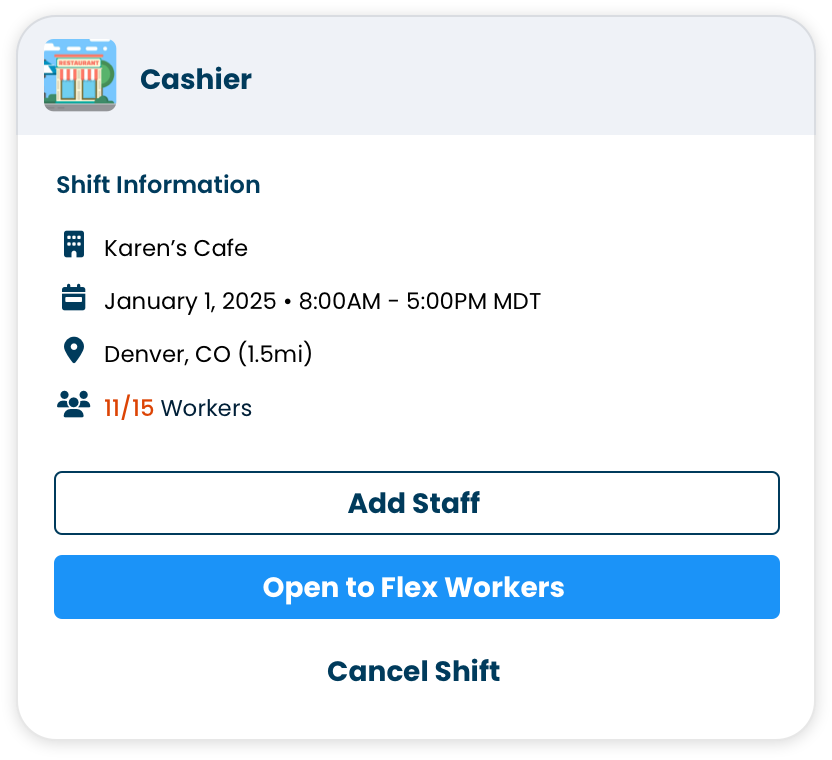
- Easily add your staff to fill any shift
- Need extra help? Open the shift to flex workers at any time
- Use optional 'Auto Open' feature to make shifts available to flex workers at a set time
Managing your team and your flex crew in one place makes it easy to fill every shift.
Access Important Details & Take Action
Find helpful details for scheduling
Inside each shift see your workers and working status:
- Scheduled: Workers confirmed for the shift
- Canceled: Workers who canceled
- Offered: Workers with pending offers
- Inactive: Workers removed from the shift
Managing Individual Workers
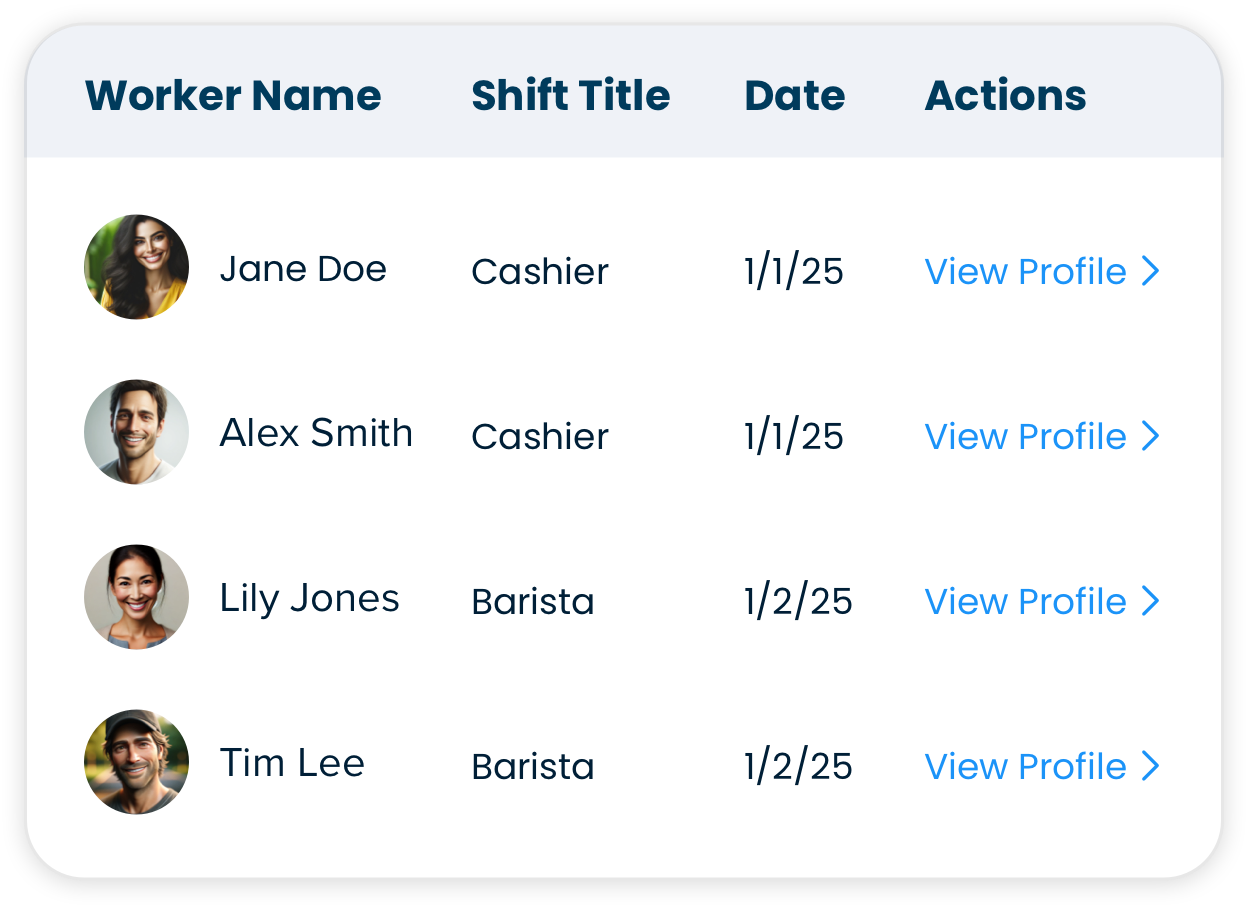
Select any worker card to:
- Message them directly
- Place a phone call
- View their profile and history
- Remove them from the shift
- See time worked
- View location history
SUPERCHARGE YOUR TEAM.
ENERGIZE YOUR BUSINESS.
When your backup needs a backup, we've got you covered with flex workers
Your team's schedule in three ways.
Position View
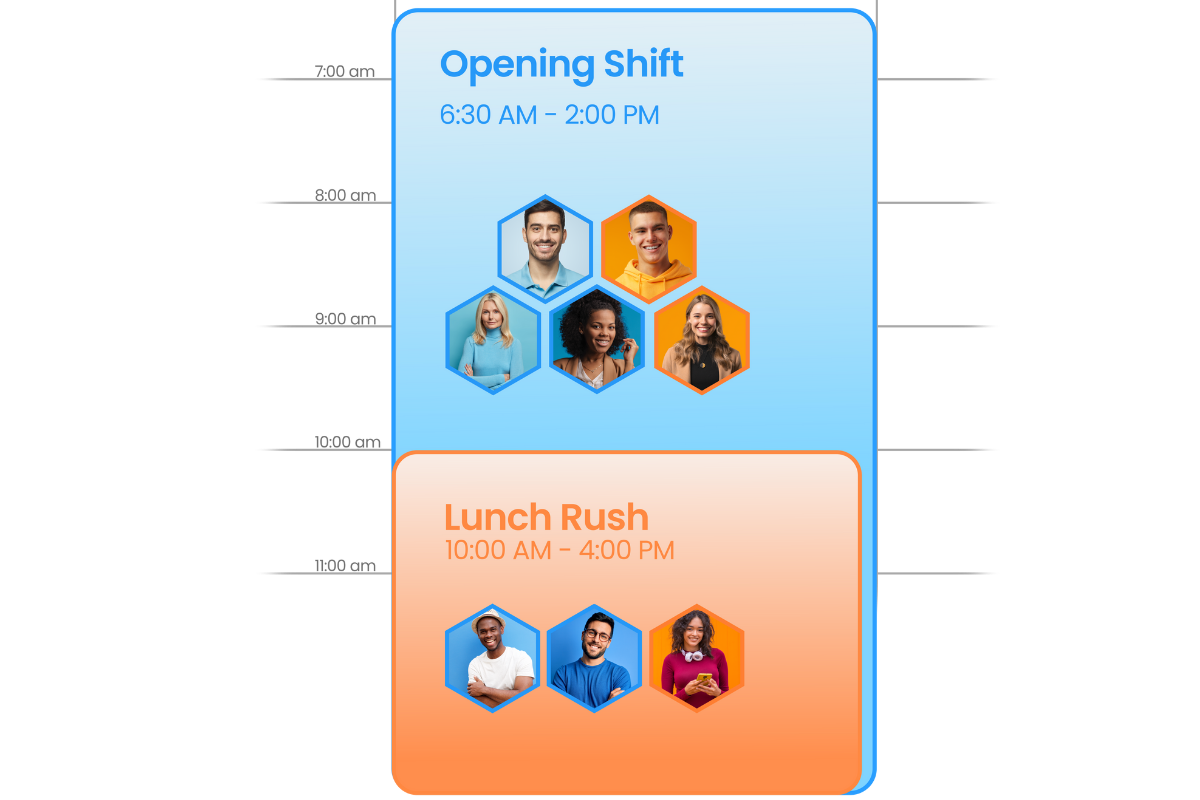
Shows your shift coverage at a glance. See which positions need workers, create shifts directly from the calendar, and manage your entire team's assignments in one view.
Slots View
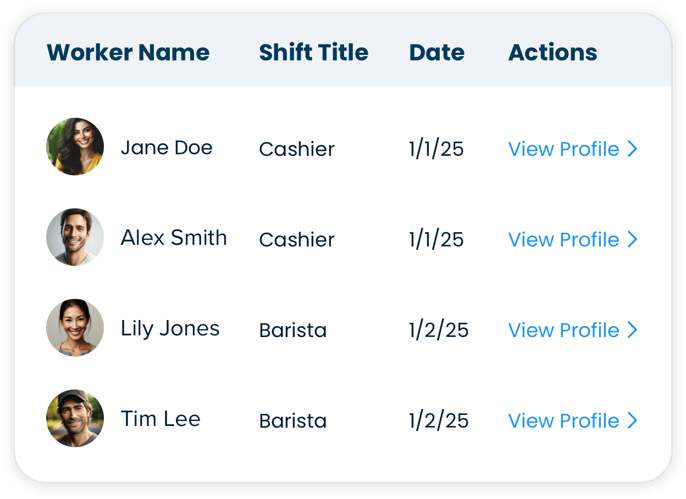
Reveals exactly who's working each shift. Identify empty slots instantly, see worker names, and fill gaps without any back-and-forth confusion or double-booking.
Worker View
Displays each team member's full schedule. Prevent overworking, spot scheduling conflicts, and balance hours fairly across your entire workforce in one screen.
Smart Hire operates in a tiered system to secure the most suitable workers for your open shifts.
|
Favorite Workers and Custom Groups |
|
Highly-rated workers you have previously hired |
|
Qualified workers available near you. |
You always have the option to manually send out offers and hire workers before or during the Smart Hire process.
Frequently Asked Questions
-
How do I invite my workforce to start scheduling?
You can invite workers individually or in bulk using a CSV file. For individual invitations, go to Organization Management > Workforce > Workforce Workers, select "+ Invite," and enter their name, email, and phone number. For large teams, download the CSV template, fill in worker information with positions and locations, then upload to invite everyone at once. Workers will receive email invitations to join and can onboard in just a few steps.
-
Can I schedule the same workers across multiple locations?
Yes. When inviting workforce workers, you assign them to specific locations and positions they're qualified for during the setup process. You can assign workers to multiple locations, and they'll be available to pick up or be assigned shifts at any of those locations. Use Position Slots View to see exactly which workers are scheduled at each location on any given day.
-
How do I handle timesheet approval after shifts are complete?
After each shift, workers submit timesheets for your review. You'll see a banner on your Home page with a count of timesheets needing approval. Review each timesheet, approve the worked hours, or edit time if needed. You have up to 30 days after the shift ends to make corrections. Once approved, export timesheets to integrate with your existing payroll system.
Schedule Your Workforce With
Confidence and Ease
From setup to shift management, G-Force makes workforce scheduling simple. Get started today.