2 min read

How to Use the GigSmart <> Onfleet Integration

Integrate your Get Workers and Onfleet accounts to streamline delivery operations. This guide walks you through connecting the platforms, posting delivery shifts, hiring workers, and managing tasks, all while keeping both systems in sync.

Where to link your Onfleet account in the GigSmart platform

There are two places within the GigSmart Get Workers app where you can link your Onfleet account, the first is when creating a Position:
  1. Create a new Position
  2. On the Travel & Delivery Step, select “Yes, Workers will be traveling and/or making deliveries".
    1. Answer if the Position requires Workers to use their own vehicle or not.
    2. Enter the estimated Mileage Workers will travel during a Shift
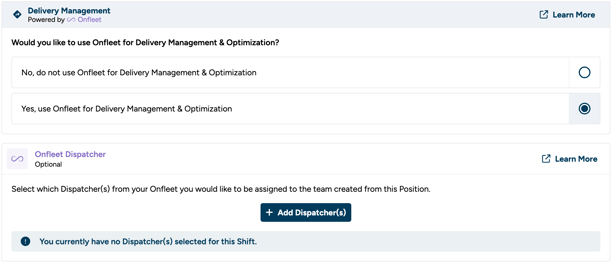
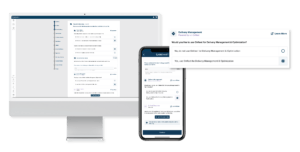
  3. In the Delivery management section, select “Yes use Onfleet for Delivery Management & Optimization.
    1. You are now able to link your Onfleet account. 
    2. Once your Onfleet account is linked, you can optionally select which Dispatcher(s) from your linked Onfleet account you would like assigned to the Driver Teams.
  4. Lastly, finish creating your Position and post a Shift!

Screenshot 2025-11-05 at 12.15.57 PM

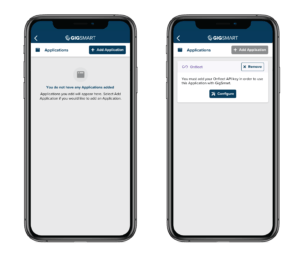
Additionally, you can link your Onfleet account in the Organization Settings section of Get Workers. 
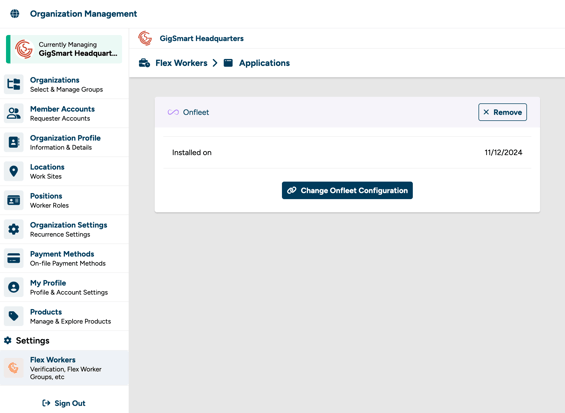
  1. Navigate to Organization Management by selecting your Organization Profile in the top right of the screen.
  2. Under the Settings tab located at the bottom of the toolbar, select “Flex Worker Settings”. 
  3. From the Flex Worker Settings page, select the “Applications” section.
  4. Select “Add Application” to link your Onfleet account.

Screenshot 2025-11-05 at 10.24.42 AM

How to link your Get Workers and Onfleet accounts

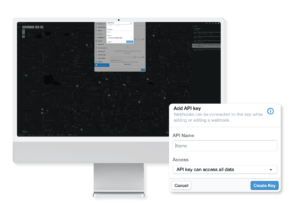
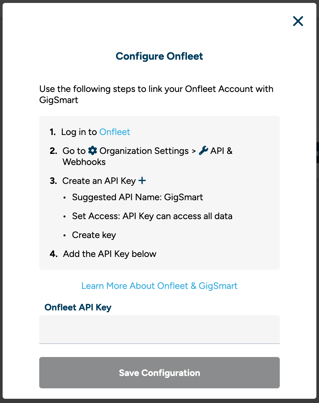
To link your two accounts, you will need to input an Onfleet API Key into the Get Workers app. 

  1. Log in to your Onfleet account
  2. Open the Settings tab and select API & Webhooks
  3. Within the API & Webhooks tab, click the “+” on the bottom right of the API Keys section
  4. Fill in the API Name field (Suggested name: GigSmart) and set Access ability to “API key can access all data”
    1. Please note that this is required for the integration to work properly
  5. Click “Create Key”
  6. Select and copy the newly created API Key
  7. Go back into Get Workers
  8. Press the “Link Onfleet Account” button (in one of the two places listed in the section above)
  9. Paste the API Key into the “Onfleet API Key” input field
  10. Click “Save Configuration” 

 You will only need to link your accounts once, and it can be edited at any time.
Screenshot 2025-11-04 at 3.52.57 PM

How to assign tasks AND Manage workers on an Onfleet Shift

When you post a new Shift using a Position that includes Onfleet, a Driver Team is automatically created in Onfleet for each Shift posted. Likewise, when you hire a worker on a Shift that includes Onfleet , they will be automatically added as a Driver to the relevant Driver Team in Onfleet. 

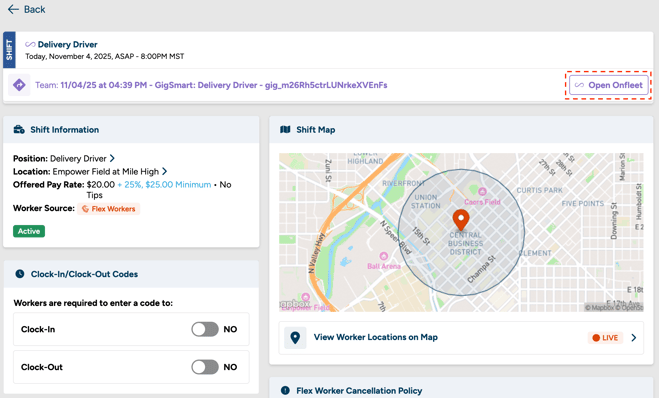
The name of the Driver Team in Onfleet will appear as: Shift Start Date at Shift Start Time – GigSmart: Shift Title”.

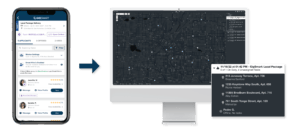
Once the Shift is posted and workers are hired, click the “Open Onfleet” button at the top of the Shift screen. This will open the Onfleet Dashboard. Here, you will be able to view the Driver Teams and Drivers that were created via the Get Workers app.
Screenshot 2025-11-04 at 4.42.00 PM

To assign Tasks to Drivers, you will first need to assign tasks to the Driver Team (Shift). To avoid mis-assigning tasks, be sure to assign tasks to the Driver Team first and then assign those tasks to the desired Driver on the team.

After tasks are assigned to the Drivers in Onfleet’s platform, you will also be able to view the assigned tasks in the Get Workers app. Do this by viewing the Shift, selecting the hired worker’s details page, and clicking the “View Tasks” button.
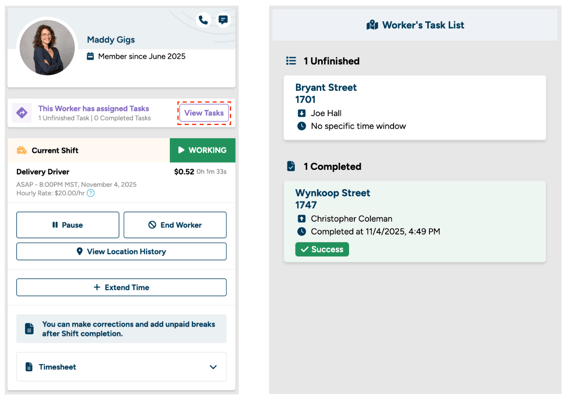
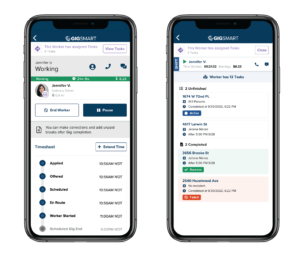
Screenshot 2025-11-05 at 12.28.37 PM

How to complete a Shift that includes Onfleet

Once the Shift is completed and the timesheets have been approved, the Driver Team and the Drivers on the team will be removed from Onfleet. If there are any Tasks that are incomplete, the task will be unassigned from the Driver Team and Drivers.

Get in the Gig Flow

The gig economy is booming, and we’re here to help you get a piece of the action. The GigSmart app is a simple, easy-to-use platform that...

Read More

How to Create a Get Gigs Account

Looking for work? Get Gigs instantly connects you with local job opportunities – from shift work to part and full-time positions. Work opportunities...

Read More

Get Access to More Gigs by Becoming a Verified Worker

GigSmart and Checkr, a national background check provider, have partnered to offer optional worker verification for Get Gigs workers. Verified...

Read More